Can You Turn Roku TV On Without Remote? 7 Easy Methods!
Losing your Roku remote can be a major inconvenience, especially when you just want to relax and watch your favorite shows. But don’t worry, you’re not stuck staring at a blank screen! There are several ways you can you turn Roku TV on without remote, even if you’ve misplaced it.
From using the physical power button on your TV to leveraging your smartphone or voice assistants, there are options to get your entertainment back on track. This guide will walk you through each method, explaining the pros and cons of each so you can quickly find the best solution for your situation. Let’s explore how to regain control of your Roku TV!
Table of Contents
- 1 I. Introduction
- 2 II. How Roku TV power and wake features work
- 2.1 1. Power states on Roku TV including standby and Fast TV Start
- 2.2 2. The role and location of the physical power button on Roku TVs
- 2.3 3. HDMI-CEC explained and how it can power on your TV
- 2.4 4. Mobile app wake behavior and network requirements
- 2.5 5. Voice control options via Roku, Alexa, and Google Assistant
- 2.6 6. Differences across TCL, Hisense, Onn, Sharp, and other Roku TV brands
- 2.7 7. Limitations on hotel, dorm, or captive portal networks
- 3 III. Decision guide to choose the right method
- 3.1 1. If you can physically reach the TV use the built-in power button
- 3.2 2. If your phone shares Wi‑Fi with Fast TV Start enabled use the Roku mobile app
- 3.3 3. If you have a console or streaming box use HDMI‑CEC power on
- 3.4 4. If you already use Alexa or Google Assistant use voice to turn on
- 3.5 5. If none of the above apply consider a universal or replacement remote
- 3.6 6. As a last resort consider a safe power cycle or smart plug
- 3.7 7. Quick comparison of cost convenience reliability and setup effort
- 4 IV. Method – 1: Use the TV’s built‑in power button
- 5 V. Method – 2: Use the Roku mobile app as a remote
- 6 VI. Method – 3: Turn on via HDMI‑CEC using a connected device
- 7 VII. Method – 4: Use voice assistants and smart home integration
- 8 VIII. Method – 5: Power cycle using a wall switch or smart plug
- 9 IX. Method – 6: Use a universal remote or replacement Roku remote
- 10 X. Method – 7: Use TV buttons to enable easier future wake options
- 11 XI. Manage power behavior to make turning on easier next time
- 12 XII. Security privacy and safety considerations
- 13 XIII. Cost convenience and reliability comparison of methods
- 14 XIV. Real‑world scenarios and examples
- 15 XV. Common misconceptions and facts to know
- 16 XVI. Troubleshooting Common Issues Regarding Turning On Your Roku TV Without a Remote
- 16.1 1. TV Not Responding to Power Button
- 16.2 2. Weak or Dead Batteries in the Roku Remote App
- 16.3 3. Roku Mobile App Not Connecting
- 16.4 4. TV’s Physical Button is Faulty
- 16.5 5. HDMI-CEC Not Enabled
- 16.6 6. Initial Setup Not Completed
- 16.7 7. Roku TV Software Glitch
- 16.8 8. Physical Obstruction Blocking the IR Sensor
- 16.9 9. Remote App is Outdated
- 16.10 10. TV Input is Incorrect
- 17 XVII. Tips and Tricks for Turning On Your Roku TV Without a Remote
- 17.1 1. Voice Control via Smart Assistants
- 17.2 2. Utilize the Roku Mobile App as a Backup
- 17.3 3. HDMI-CEC for Seamless Device Integration
- 17.4 4. Sleep Timer for Automatic Shutdown
- 17.5 5. Power on via Roku App When Away
- 17.6 6. USB Keyboard for Basic Control
- 17.7 7. Universal Remote Programming for Roku
- 17.8 8. Scheduled Power Cycling with Smart Plugs
- 17.9 9. Share Remote Access via Roku Account
- 17.10 10. Use Third-Party Remote Apps for Expanded Control
- 18 XVIII. Frequently Asked Questions about Turning On Your Roku TV Without a Remote
- 18.1 1. Can I turn on my Roku TV without a remote if the physical button is broken?
- 18.2 2. Does the Roku mobile app always work to turn on the TV?
- 18.3 3. Can I use Alexa or Google Assistant to turn on my Roku TV?
- 18.4 4. Is HDMI-CEC a reliable way to turn on my Roku TV without a remote?
- 18.5 5. Can I turn on a Roku TV without a remote if it’s completely powered off (unplugged)?
- 18.6 6. Is there a setting on the Roku TV that prevents it from being turned on without a remote?
- 18.7 7. Can I use a universal remote to turn on my Roku TV?
- 18.8 8. Does the Roku mobile app work if my Roku TV is on a different Wi-Fi network?
- 18.9 9. Can I turn on my Roku stick without a remote?
- 18.10 10. If I lose my Roku remote, is there a permanent alternative for turning on the TV?
- 19 XIX. Key Takeaways for: “Can You Turn Roku TV On Without Remote”
- 20 XX. Conclusion
- 21 XXI. Additional References
I. Introduction
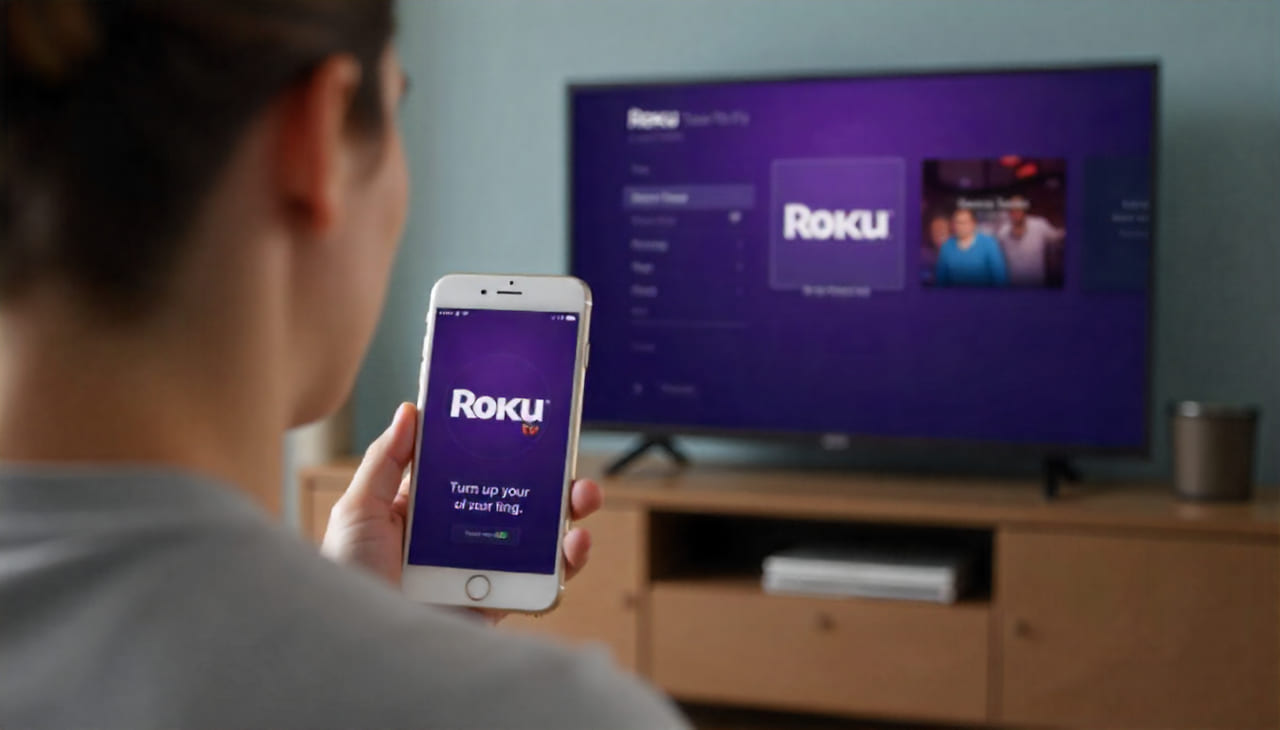
A person uses the official Roku app on their phone to control a Roku TV, one of the seven easy ways to bypass a lost or broken remote.
1. Why turning on a Roku TV without a remote matters for beginners in the US
For beginners in the US, figuring out how to turn on a Roku TV without a remote is crucial because remotes get lost or malfunction. This knowledge provides immediate access to entertainment, especially during a casual watch session at home. It also saves the cost and hassle of replacing a remote right away.
2. Quick answer overview and what actually works today
Currently, you can turn on a Roku TV without a remote using the TV’s physical buttons, the Roku mobile app (if Fast TV Start is enabled), HDMI-CEC via a connected device, or voice assistants like Alexa or Google Assistant. Some models may have limited functionality or require prior setup.
3. What this guide covers and how to use it effectively
This guide covers multiple methods to turn on a Roku TV without a remote. It details each approach, including steps, requirements, and pros/cons. Use this guide by first determining what resources you have available (e.g., smartphone, voice assistant) and then following the corresponding method’s instructions.
4. What you need to know about model differences and feature availability
Model differences affect feature availability. Some older Roku TVs might lack Fast TV Start or HDMI-CEC. TCL, Hisense, Onn, and Sharp Roku TVs can vary in physical button placement. Check your specific model’s specifications for compatibility with methods like the Roku mobile app or voice control.
II. How Roku TV power and wake features work

How
1. Power states on Roku TV including standby and Fast TV Start
Roku TVs have different power states: Standby is a low-power mode where the TV is off but can quickly turn on. Fast TV Start allows the TV to wake up almost instantly from standby, keeping network connectivity active. Full power off completely shuts down the TV.
The physical power button allows you to turn the TV on or off manually. Its location varies, typically found on the bottom center, back, or side panel. It serves as a basic control method, independent of the remote or network features.
3. HDMI-CEC explained and how it can power on your TV
HDMI-CEC (Consumer Electronics Control) enables devices connected via HDMI to control each other. Enabling CEC allows your Roku TV to turn on automatically when you power on a connected device, like a game console or streaming box.
4. Mobile app wake behavior and network requirements
The Roku mobile app can wake a Roku TV if both are on the same Wi-Fi network and Fast TV Start is enabled. The app sends a wake signal over the network to the TV, turning it on. This requires the TV to remain connected to Wi-Fi even in standby.
5. Voice control options via Roku, Alexa, and Google Assistant
Roku TVs support voice control through Roku Voice (via compatible remotes), Amazon Alexa, and Google Assistant. Linking your Roku account and enabling Fast TV Start allows you to turn on the TV using voice commands, providing hands-free control.
6. Differences across TCL, Hisense, Onn, Sharp, and other Roku TV brands
TCL, Hisense, Onn, Sharp, and other Roku TV brands differ in hardware design, so physical button placement varies. Fast TV Start availability and menu settings for HDMI-CEC can also differ slightly. Check your TV’s manual for precise details.
7. Limitations on hotel, dorm, or captive portal networks
Hotel, dorm, or captive portal networks often require web-based authentication, which Roku TVs may not handle well. The Roku mobile app and voice control might not work on these networks due to connectivity restrictions and network security protocols.
III. Decision guide to choose the right method

Methods
If you can reach the TV, the built-in power button is a reliable option. It requires no setup or network connection. Simply locate the button and press it to turn on the TV, but this may be inconvenient if the TV is mounted or hard to reach.
If your phone is on the same Wi-Fi network as the Roku TV and Fast TV Start is enabled, the Roku mobile app is convenient. It offers full remote functionality, including a keyboard. However, it relies on a stable Wi-Fi connection and prior setup.
3. If you have a console or streaming box use HDMI‑CEC power on
Using HDMI-CEC via a connected device like a console or streaming box allows seamless power-on. When you turn on the connected device, the TV also turns on automatically. This depends on both devices supporting and having CEC enabled, with occasional reliability issues.
4. If you already use Alexa or Google Assistant use voice to turn on
If you use Alexa or Google Assistant, voice control offers hands-free convenience. You can turn on the TV with a simple voice command. This requires linking accounts, enabling Fast TV Start, and considering privacy implications with always-listening devices.
5. If none of the above apply consider a universal or replacement remote
If none of the above methods work, a universal or replacement remote provides a dedicated control option. It avoids relying on networks or other devices. This option involves an upfront cost and requires setup or pairing but offers long-term reliability.
6. As a last resort consider a safe power cycle or smart plug
As a last resort, a safe power cycle via a smart plug can sometimes wake the TV. Automate this with scheduled routines using a smart plug. However, it’s not guaranteed to fully power on the TV and carries risks of data corruption or wear.
7. Quick comparison of cost convenience reliability and setup effort
A. No cost options vs paid accessories
No-cost options like the built-in button and mobile app are convenient but depend on accessibility or network setup. Paid accessories, like universal remotes or smart plugs, offer dedicated control but involve an upfront cost.
B. One‑time setup vs ongoing usability
Methods like HDMI-CEC and voice assistants require one-time setup. These provide ongoing usability and convenience. Options like power cycling require less initial setup but don’t offer consistent, reliable usability.
C. Reliability trade‑offs at a glance
The built-in button offers high reliability but limited convenience. The mobile app and voice control are convenient but rely on network stability. Power cycling is least reliable, while dedicated remotes offer a balance of reliability and usability.

Method
Some Roku TVs have a joystick or single button at the bottom center. This button usually controls power, volume, and navigation. It’s often subtly placed, so look closely along the bottom edge.
B. Back right or back left panel placement
Many Roku TVs have the power button on the back panel, either on the right or left side. It’s often a small, circular button near the input ports, requiring you to reach around the TV to find it.
C. Side panel older models
Older Roku TV models sometimes have the power button on the side panel. It might be located along the right or left edge, easily accessible without needing to reach behind the TV.
A. Single press to power on
To power on the TV, give the button a single, firm press. The TV should respond by turning on and displaying the Roku home screen after a brief startup sequence.
B. Short vs long press behaviors
A short press typically powers the TV on or off, while a long press might bring up a menu. This menu can include options to adjust volume, change inputs, or access settings without a remote.
If your TV has a joystick button, use it to navigate menus. Push the joystick up, down, left, or right to move through the options, and press it in to select a highlighted item, similar to using a remote’s directional pad.
3. Pros cons and when this is the best option
A. Zero cost and works offline
Using the built-in button costs nothing and doesn’t require a network connection. This makes it a reliable option when your remote is lost or the network is down.
B. Accessibility and placement drawbacks
The button’s placement can be inconvenient, especially if the TV is wall-mounted or hard to reach. The small size and location can also make it difficult for those with mobility issues.
C. Reliability and speed
The physical button is highly reliable for basic power functions. However, navigating menus can be slower and less intuitive than using a remote, impacting speed.
The button method won’t work if the button is damaged or the TV’s internal hardware is faulty. It’s also limited in functionality compared to a remote, making advanced settings changes difficult.
Example: If your Roku TV’s remote is lost, locate the power button on the TV’s bottom panel. Press it once to turn on the TV. Use short and long presses to access basic menus and navigate using the button like a joystick to select your desired input.
V. Method – 2: Use the Roku mobile app as a remote
Method
1. Requirements for the app to turn on a Roku TV
A. Same Wi‑Fi network as the TV
Your smartphone or tablet must be connected to the same Wi-Fi network as the Roku TV. This allows the app to discover and communicate with the TV.
B. Fast TV Start enabled on the Roku TV
The Roku TV needs to have the “Fast TV Start” feature enabled in its settings. This keeps the TV connected to the network even when in standby mode, allowing it to respond to the app’s wake signal.
C. iOS and Android compatibility
The Roku mobile app is compatible with both iOS (Apple) and Android devices. Ensure you download the correct version from the App Store or Google Play Store, respectively.
2. Steps to connect and power on with the app
A. Launch app and select your Roku TV
Open the Roku mobile app on your device. The app should automatically detect Roku devices on your network. Select your Roku TV from the list of available devices.
B. Tap the remote icon and use the power control
Once connected, tap the “Remote” icon within the app. This will bring up a virtual remote control interface. Locate the power button icon and tap it to turn the TV on or off.
C. If the TV is asleep wake via Fast TV Start
If the TV is in standby mode (asleep), tapping the power button in the app sends a wake signal. The TV should power on almost instantly if Fast TV Start is enabled.
3. Network alternatives and limitations
A. Ethernet or wired options on select models
Some Roku TV models offer an Ethernet port for a wired network connection. Using Ethernet can provide a more stable connection than Wi-Fi, improving the app’s reliability.
B. Why Bluetooth control from phone is not supported
Roku TVs do not support Bluetooth control directly from phones. The Roku mobile app relies on a Wi-Fi connection for communication.
C. Mobile hotspot considerations and risks
Using a mobile hotspot can work if both the phone and Roku TV connect to it. However, this can consume significant mobile data and may not be reliable due to varying signal strength and data limits.
4. Pros cons and privacy considerations
A. Free and full remote features including keyboard
The Roku mobile app is free to download and use. It offers full remote control features, including a keyboard for easy text input, enhancing convenience.
B. Requires prior setup and network stability
The app requires initial setup and a stable Wi-Fi network. If the network is unstable or the TV loses connection, the app won’t be able to control the TV.
C. Data privacy and app permissions
Be aware of data privacy. The app requires certain permissions on your device. Review the app’s privacy policy to understand what data is collected and how it’s used.
Example: To use the Roku mobile app to turn on your TV, ensure your phone and Roku TV are on the same Wi-Fi network. Open the Roku app, select your TV, tap the remote icon, and press the power button. Fast TV Start must be enabled for this to work.
VI. Method – 3: Turn on via HDMI‑CEC using a connected device
Method
1. What HDMI‑CEC is and how it turns on your TV
A. CEC names across brands and devices
HDMI-CEC (Consumer Electronics Control) allows devices connected via HDMI to control each other. Different brands have their own names for CEC, such as SimpLink (LG), BRAVIA Sync (Sony), and EasyLink (Philips).
B. One‑touch play behavior
CEC enables “one-touch play,” meaning when you turn on one device (like a game console), the TV automatically turns on and switches to the correct HDMI input. This simplifies the user experience.
2. Enable CEC on Roku TV and your device
A. Roku TV settings to allow 1‑touch play
On your Roku TV, go to Settings > System > Control other devices (CEC). Enable the “1-touch play” option to allow connected devices to turn on the TV.
B. Console or streaming box CEC settings
On your game console or streaming box, find the CEC settings (usually in the system or display settings). Enable CEC or the equivalent setting to allow it to control the TV.
3. Device‑specific examples
A. PlayStation Xbox and Nintendo Switch
PlayStation: Enable HDMI Device Link in settings. Xbox: Enable HDMI-CEC in settings. Nintendo Switch: HDMI-CEC is typically enabled by default.
B. Apple TV Fire TV Chromecast with Google TV
Apple TV: CEC is enabled by default. Fire TV: Enable HDMI-CEC in settings. Chromecast with Google TV: Enable CEC in settings.
C. Cable satellite and Blu‑ray players
Cable/Satellite boxes: Check settings for HDMI-CEC or similar options. Blu-ray players: Enable HDMI-CEC in the player’s settings menu.
4. Pros cons and reliability notes
A. Seamless powering on when launching devices
HDMI-CEC provides a seamless experience by powering on the TV when you turn on a connected device, reducing the need for multiple remotes.
B. Intermittent behavior and cable quality
CEC can be intermittent due to software glitches or compatibility issues. Poor quality HDMI cables can also cause CEC to function unreliably.
C. Input switching quirks
Sometimes CEC may not switch to the correct input automatically or might switch inputs unexpectedly, causing confusion.
Example: To turn on your Roku TV with HDMI-CEC, connect your PlayStation 5 to the TV via HDMI. Enable “HDMI Device Link” on the PS5 and “1-touch play” in the Roku TV’s CEC settings. When you power on the PS5, the Roku TV should automatically turn on and switch to the correct HDMI input.
VII. Method – 4: Use voice assistants and smart home integration
Method
1. Supported voice platforms for Roku TVs
A. Roku Voice via compatible Roku remotes
Roku Voice is available through compatible Roku remotes with a microphone button. Press the button and speak your command to control the TV.
B. Amazon Alexa integration
Roku TVs integrate with Amazon Alexa. Use Alexa-enabled devices (like Echo) to control your Roku TV with voice commands.
C. Google Assistant integration
Roku TVs also integrate with Google Assistant. Use Google Assistant-enabled devices (like Google Home) to control your Roku TV with voice commands.
2. Requirements and setup basics
A. Linking accounts and discovering the TV
Link your Roku account to your Amazon or Google account in the respective app. Then, use the Alexa or Google Home app to discover and add your Roku TV as a device.
B. Enabling Fast TV Start for wake via voice
Ensure that “Fast TV Start” is enabled on your Roku TV. This allows the TV to respond to voice commands even when in standby mode.
C. Naming and room assignment for voice control
Assign a name to your Roku TV (e.g., “Living Room TV”) and assign it to a room in the Alexa or Google Home app. This helps the voice assistant understand which TV you’re referring to.
3. Example voice commands to power on
A. Alexa commands
“Alexa, turn on Living Room TV.” “Alexa, power on Roku in the Living Room.”
B. Google Assistant commands
“Hey Google, turn on Living Room TV.” “OK Google, power on Roku in the Living Room.”
4. Pros cons and household usability
A. Hands‑free convenience
Voice control offers hands-free convenience, allowing you to turn on the TV without needing a remote or phone.
B. Setup time and ecosystem lock‑in
Setting up voice control requires linking accounts and configuring devices, which can take time. It also locks you into a specific ecosystem (Amazon or Google).
C. Privacy considerations with always‑listening devices
Be aware of privacy implications with always-listening devices. These devices constantly listen for voice commands, raising concerns about data collection and privacy.
Example: To use Google Assistant to turn on your Roku TV, link your Roku account to your Google account in the Google Home app. Enable Fast TV Start on the Roku TV and name it “Living Room TV”. Then, say “Hey Google, turn on Living Room TV” to power on the TV.
VIII. Method – 5: Power cycle using a wall switch or smart plug
Method
1. How power cycling can wake some Roku TVs
A. What happens on power restore
When power is restored after a power outage, some Roku TVs automatically turn on. This behavior depends on the TV’s settings and how it handles power interruptions.
B. Standby vs full power on behaviors
If the TV was in standby mode, power cycling might trigger it to return to standby. If it was fully off, it might fully power on, depending on the model and settings.
2. Safe steps to use a smart plug or switch
A. Avoid rapid toggling to protect electronics
Avoid rapidly turning the smart plug or switch on and off, as this can damage the TV’s electronics. Allow a few seconds between each power cycle.
B. Automations and scheduled routines
Set up automations in the smart plug’s app to schedule power cycles at specific times. For instance, cycle the power every morning to ensure the TV is on for your morning news.
3. Risks and caveats with this approach
A. Not guaranteed to power on fully
Power cycling is not guaranteed to fully power on the Roku TV. It depends on the TV’s internal settings and behavior after a power interruption.
B. Potential data corruption or wear
Frequent power cycling can potentially lead to data corruption or wear on the TV’s components over time, especially if the TV is writing data when power is cut.
C. Energy settings that block auto power on
Some energy-saving settings can prevent the TV from automatically powering on after a power cycle, limiting the effectiveness of this method.
4. Pros cons and when to avoid this method
Power cycling is a last-resort option with low reliability. It can potentially cause data corruption and wear on the TV. Avoid this method if other options are available.
Example: To power cycle your Roku TV, plug it into a smart plug. Use the smart plug’s app to turn off the power to the TV for a few seconds, then turn it back on. Check if the TV powers on automatically. Avoid rapidly toggling the power to protect the TV.
IX. Method – 6: Use a universal remote or replacement Roku remote
Method
1. Types of remotes that work with Roku TVs
A. IR universal remotes with Roku TV codes
IR (Infrared) universal remotes can work with Roku TVs if you enter the correct Roku TV code during setup. These remotes transmit signals via infrared, requiring a line of sight to the TV.
B. Roku Simple IR remote for Roku TV
The Roku Simple IR Remote is a basic remote designed specifically for Roku TVs. It uses infrared and offers essential functions like power, volume, and navigation.
C. Roku Voice Remote and Voice Remote Pro
The Roku Voice Remote and Voice Remote Pro connect via Wi-Fi Direct and offer voice control, headphone jack, and other advanced features. These remotes require pairing with the Roku TV.
2. Compatibility and pairing
A. IR line‑of‑sight setup
IR remotes require a clear line of sight to the TV’s IR sensor. Point the remote directly at the TV for it to work.
B. Wi‑Fi Direct pairing for voice remotes
Voice remotes pair via Wi-Fi Direct. Follow the on-screen instructions to pair the remote with your Roku TV. This usually involves pressing a button on the remote while the TV is in pairing mode.
C. Brand and model considerations
Ensure the universal remote is compatible with Roku TVs and that you have the correct code for your specific TV model. Not all universal remotes support every Roku TV model.
3. Cost and value comparison
A. Budget IR remotes vs OEM replacements
Budget IR remotes are inexpensive but may lack advanced features. OEM (Original Equipment Manufacturer) replacements are more expensive but offer better compatibility and functionality.
B. Shipping time and availability in the US
Shipping times for replacement remotes can vary. OEM remotes might be harder to find and could take longer to ship compared to universal remotes available at local stores.
C. Long‑term convenience vs upfront cost
A replacement remote provides long-term convenience and dedicated control. However, it involves an upfront cost. Weigh the cost against the convenience of having a reliable remote.
4. When a universal or replacement remote is the best choice
A universal or replacement remote is the best choice when other methods are unreliable or require too much setup. It offers a dedicated, reliable control option without relying on networks or other devices.
Example: If you lose your Roku remote, purchase a Roku Simple IR Remote from a local electronics store. Insert batteries, point the remote at your Roku TV, and use it to power on and control the TV. No pairing is required for IR remotes.
Method
Using the TV’s physical buttons, navigate to the settings menu. Find the “Power” or “Energy Saving” options and enable “Fast TV Start.” This will keep the TV connected to Wi-Fi in standby.
2. Turning on HDMI‑CEC and configuring input control
In the settings menu, look for “HDMI” or “CEC” options. Enable HDMI-CEC to allow connected devices to power on the TV. Configure input control to automatically switch to the correct HDMI source.
Navigate to the “Voice Control” or “Smart Home” settings. Follow the on-screen prompts to link your Roku account to your Amazon Alexa or Google Assistant account.
4. Setting up the Roku mobile app while the TV is on
Download the Roku mobile app on your smartphone. With the TV powered on, the app should automatically detect the TV on the same Wi-Fi network. Follow the instructions to connect and pair the app with the TV.
Example: To enable Fast TV Start, press the menu button on your Roku TV. Navigate to Settings > Power > Fast TV Start and enable the option. This ensures the TV stays connected to Wi-Fi, allowing you to use the Roku mobile app for future power-ons.
XI. Manage power behavior to make turning on easier next time
1. Set power on to last input or home screen
Configure your Roku TV to power on to the last used input or the home screen. This eliminates the need to navigate menus every time you turn on the TV. Find this option in the settings menu under “Power” or “System.”
2. Adjust Energy Saver and Auto Power Savings
Adjust the Energy Saver and Auto Power Savings settings to your preference. Disabling these features can allow the TV to power on more quickly. However, be aware of the increased energy consumption.
3. Configure sleep timers and screen savers
Set a sleep timer to automatically turn off the TV after a period of inactivity. Configure a screen saver to prevent burn-in on the screen. Adjusting these settings can help manage power consumption.
4. Keep network connection in standby for app and voice wake
Ensure that the network connection remains active in standby mode. This allows you to wake the TV using the Roku mobile app or voice commands. Find this setting in the “Power” or “Network” settings menu.
Example: In your Roku TV settings, go to Settings > Power > Power On Preference and select “Last Input.” This ensures that when you turn on the TV, it automatically goes to the last HDMI input you were using, such as your game console.
XII. Security privacy and safety considerations

Security
1. CEC control scope and potential unintended device control
CEC control can extend to other devices connected via HDMI. Unintended device control might occur, such as a Blu-ray player starting when you turn on the TV. Be aware of these potential interactions.
2. Network permissions for the Roku mobile app
The Roku mobile app requires network permissions to communicate with the TV. Review the app’s permissions to understand what data it accesses and how it uses it.
3. Smart plug electrical safety and surge protection
When using smart plugs, ensure they are UL-certified and have surge protection. This protects your TV from electrical surges and ensures safe operation.
4. Household access control and voice command restrictions
Set up household access control and voice command restrictions on voice assistants to prevent unauthorized users from controlling the TV. This can help maintain privacy and security.
Example: If you have children, set up voice command restrictions on your Google Home device to prevent them from turning on the TV and accessing inappropriate content without your permission.
XIII. Cost convenience and reliability comparison of methods

Cost
1. Zero cost options ranked by ease and success rate
The built-in button is the easiest and most reliable zero-cost option. The Roku mobile app is convenient but relies on a stable network and prior setup, reducing its success rate.
2. Low cost accessories with best value for beginners
The Roku Simple IR Remote is a low-cost accessory that offers good value for beginners. It provides dedicated control without advanced features or complex setup.
3. Reliability over time and maintenance effort
The built-in button and dedicated remotes offer the highest reliability over time. The Roku mobile app and voice control require ongoing maintenance, such as network troubleshooting and account management.
4. Accessibility considerations for mobility or vision needs
Voice control offers excellent accessibility for users with mobility issues. Dedicated remotes with large buttons are beneficial for those with vision impairments.
Example: If you want a reliable and easy-to-use method, the built-in button is the best zero-cost option. If you prefer convenience and have a stable network, the Roku mobile app is a good choice. For those with mobility issues, voice control is the most accessible option.
XIV. Real‑world scenarios and examples
1. Lost remote at home quick wins
If you lose your remote at home, first check common hiding spots like between couch cushions or under furniture. Then, use the Roku mobile app or the TV’s built-in buttons to regain control.
2. Dead remote batteries options in minutes
If your remote’s batteries die, try using the Roku mobile app as a temporary solution. Keep spare batteries on hand for quick replacements to avoid prolonged downtime.
3. After a power outage what to try first
After a power outage, check if your Roku TV automatically turns on. If not, use the built-in button or the Roku mobile app to power it on. Ensure that Fast TV Start is enabled in the settings.
4. In a hotel or dorm what is realistically possible
In a hotel or dorm, the built-in button is the most reliable option, as network access might be restricted. Some hotels may allow you to connect to the Wi-Fi, enabling the Roku mobile app.
5. For vacation rental hosts set and forget configurations
For vacation rental hosts, configure the Roku TV to power on to the home screen and enable HDMI-CEC. Provide a Roku Simple IR Remote as a backup option for guests.
Example: You’re at home and can’t find your Roku remote. You remember that you downloaded the Roku app on your phone before. You open the app, find your TV, and you’re watching your favorite show within seconds.
XV. Common misconceptions and facts to know

Common
1. The Roku mobile app cannot control a Roku TV over Bluetooth alone
The Roku mobile app requires a Wi-Fi connection to control a Roku TV. Bluetooth is not supported for direct control.
2. Wake on LAN is not a standard feature for Roku TVs
Wake on LAN (WOL) is not a standard feature for Roku TVs. The Roku mobile app and voice control rely on Fast TV Start, which keeps the TV connected to Wi-Fi in standby.
3. A smart plug does not guarantee a full power on state
Using a smart plug to power cycle a Roku TV does not guarantee that it will fully power on. This behavior depends on the TV’s settings and how it handles power interruptions.
4. Not all HDMI cables support reliable CEC signaling
Poor quality HDMI cables can cause CEC to function unreliably. Use high-quality HDMI cables to ensure reliable CEC signaling between devices.
Example: A common misconception is that the Roku mobile app uses Bluetooth. In reality, it needs Wi-Fi to work. Bluetooth is never used between your Roku TV and the app on your phone.
XVI. Troubleshooting Common Issues Regarding Turning On Your Roku TV Without a Remote

Troubleshooting
Ensure the Roku TV is plugged into a working power outlet. Test the outlet with another device.
2. Weak or Dead Batteries in the Roku Remote App
Replace the batteries in your smartphone or tablet, or ensure it’s adequately charged.
3. Roku Mobile App Not Connecting
Make sure your Roku TV and mobile device are on the same Wi-Fi network.
Try pressing and holding the power button for a few seconds to see if it responds.
5. HDMI-CEC Not Enabled
Enable HDMI-CEC in your Roku TV settings to allow control via other device remotes.
6. Initial Setup Not Completed
A new Roku TV might require initial setup with a remote. Consider temporarily borrowing one.
7. Roku TV Software Glitch
Unplug the TV from the power outlet for a minute, then plug it back in to reset.
8. Physical Obstruction Blocking the IR Sensor
Ensure nothing is blocking the IR sensor on the TV’s front panel.
9. Remote App is Outdated
Update the Roku mobile app to the latest version from your app store.
10. TV Input is Incorrect
Even if the TV is on, ensure the correct input source is selected using the physical buttons.
XVII. Tips and Tricks for Turning On Your Roku TV Without a Remote

Tips and Tricks
1. Voice Control via Smart Assistants
Use voice commands via Alexa or Google Assistant to power on your Roku TV, after setup.
2. Utilize the Roku Mobile App as a Backup
Always keep the Roku Mobile App installed on your smartphone for emergency control.
3. HDMI-CEC for Seamless Device Integration
Control your Roku TV with your cable box or Blu-ray player remote using HDMI-CEC.
4. Sleep Timer for Automatic Shutdown
Set a sleep timer so the TV turns off automatically, minimizing the need to power it on manually.
5. Power on via Roku App When Away
Turn on your Roku remotely via the Roku app to preheat the TV before you arrive home.
6. USB Keyboard for Basic Control
Connect a USB keyboard to your Roku TV for basic navigation and power control.
7. Universal Remote Programming for Roku
Program a universal remote to control your Roku TV if you frequently lose the original.
8. Scheduled Power Cycling with Smart Plugs
Use a smart plug to schedule power cycles for your Roku TV if it becomes unresponsive.
Grant family members access to control the Roku TV through their own Roku accounts.
10. Use Third-Party Remote Apps for Expanded Control
Explore third-party remote apps on your smartphone for enhanced Roku TV control options.
XVIII. Frequently Asked Questions about Turning On Your Roku TV Without a Remote

Frequently Asked Questions (FAQs)
If the physical button is broken, you’ll need to rely on the Roku mobile app or HDMI-CEC if configured, otherwise, the answer is No.
2. Does the Roku mobile app always work to turn on the TV?
The Roku mobile app works if the TV was last turned off normally and is connected to the same Wi-Fi, if not, the answer is No.
3. Can I use Alexa or Google Assistant to turn on my Roku TV?
Yes, if you have set up voice control through Alexa or Google Assistant.
4. Is HDMI-CEC a reliable way to turn on my Roku TV without a remote?
HDMI-CEC can be reliable, but it depends on whether your other devices support it and it is configured correctly, if not, the answer is No.
5. Can I turn on a Roku TV without a remote if it’s completely powered off (unplugged)?
No, you need a power source for the TV to respond to any control method.
6. Is there a setting on the Roku TV that prevents it from being turned on without a remote?
No, there isn’t a specific setting, but certain power-saving modes might affect responsiveness.
7. Can I use a universal remote to turn on my Roku TV?
Yes, if the universal remote is compatible and programmed correctly for your Roku TV.
8. Does the Roku mobile app work if my Roku TV is on a different Wi-Fi network?
No, both devices need to be on the same Wi-Fi network for the app to function correctly.
9. Can I turn on my Roku stick without a remote?
Turning on a Roku Stick directly without a remote is generally No, unless your TV supports HDMI-CEC.
10. If I lose my Roku remote, is there a permanent alternative for turning on the TV?
Yes, the Roku mobile app or a compatible universal remote can serve as permanent alternatives.
XIX. Key Takeaways for: “Can You Turn Roku TV On Without Remote”

Key Takeaways
1. Physical Button Check: Locate and try the physical power button as the primary method.
2. Roku App Solution: The Roku mobile app can turn on the TV if on the same Wi-Fi.
3. HDMI-CEC Advantage: HDMI-CEC allows other device remotes to control the Roku TV.
4. Voice Assistant Integration: Voice commands via Alexa or Google can power on Roku.
5. Power Cycling Benefit: Unplugging and replugging the TV can resolve software glitches.
6. Battery Considerations: Ensure mobile devices running the Roku app have ample power.
7. Setup Requirement: Initial setup usually needs a remote, even for later use without it.
8. Input Source Check: Verify the correct input source using the TV’s physical buttons.
9. App Update Importance: Keep the Roku app updated for optimal remote functionality.
10. Smart Plug Integration: Consider a smart plug for scheduled power cycles as needed.
XX. Conclusion

Conclusion
Turning on a Roku TV without a remote is possible, though it requires exploring alternative methods. The Roku mobile app, HDMI-CEC, and voice assistants offer convenient solutions. Remembering the location of your Roku TV’s physical power button is also essential. If those options aren’t viable, power cycling the TV or using a universal remote can help. Understanding these methods provides flexibility in managing your Roku TV experience. Therefore, knowing can you turn Roku TV on without remote empowers you to troubleshoot effectively and maintain control even when the standard remote is unavailable.
XXI. Additional References
- Roku Official Website – Official source for Roku device information and support.


