Can You Watch Roku TV On Your iPad? Discover 3 Easy Ways!
Want to enjoy your favorite Roku content on the go? You’re probably wondering, can you watch Roku TV on your iPad? While you can’t directly stream your Roku TV screen to your iPad, there are fantastic ways to access a wide range of entertainment.
This article will guide you through using The Roku Channel app for free content, leveraging your existing streaming subscriptions on individual iPad apps, and exploring alternatives for scenarios like headphone listening. We’ll also cover what’s not possible, like screen mirroring, and provide safer options to consider. Get ready to unlock a world of entertainment on your iPad!
Table of Contents
- 1 I. Introduction
- 2 II. Your Options: Quick answer and decision map
- 2.1 1. If you want free shows and movies on iPad use The Roku Channel app
- 2.2 2. If you already pay for Netflix Hulu Disney Plus Prime Video and others use their iPad apps
- 2.3 3. If you want to mirror a Roku screen to iPad that is not supported with safer alternatives below
- 2.4 4. If you only need headphone listening with your TV use Roku private listening on iPad
- 3 III. Requirements and compatibility
- 4 IV. Method – 1: Watch free content with The Roku Channel app on iPad
- 5 V. Method – 2: Watch your paid streaming services on their iPad apps
- 5.1 1. Use the same accounts you use on Roku for Netflix Hulu Disney Plus Prime Video Max Peacock and more
- 5.2 2. Sign in link accounts and restore purchases on iPad
- 5.3 3. Offline downloads picture quality and profiles vary by service
- 5.4 4. Cost vs convenience choosing bundles and avoiding duplicate billing
- 6 VI. Method – 3: Use Roku Premium Subscriptions on iPad via The Roku Channel
- 7 VII. What you cannot do with Roku and iPad and safe alternatives
- 8 VIII. Compare your options side by side
- 9 IX. Live TV on iPad without Roku mirroring
- 10 X. Network and data planning for iPad streaming
- 11 XI. Accessibility and family controls on iPad and within apps
- 12 XII. Example scenarios and recommendations
- 13 XIII. Setup checklists and quick references
- 14 XIV. Key terms and simple glossary
- 15 XV. Troubleshooting Common Issues Watching Roku TV on Your iPad
- 16 XVI. Tips and Tricks for Watching Roku TV on Your iPad
- 16.1 1. Use Headphones for Private Listening
- 16.2 2. Offline Viewing with Downloads
- 16.3 3. Utilize the Roku Mobile App as a Remote
- 16.4 4. Share Photos and Videos
- 16.5 5. Voice Search for Quick Access
- 16.6 6. Create a Watchlist on Your iPad
- 16.7 7. Guest Mode Privacy
- 16.8 8. Control Playback from Lock Screen
- 16.9 9. Roku Tips and Tricks
- 16.10 10. Check Roku Channel Store on iPad
- 17 XVII. Frequently Asked Questions about Watching Roku TV on Your iPad
- 17.1 1. Can I watch live TV on your iPad through Roku?
- 17.2 2. Do I need a Roku device to use the Roku app on your iPad?
- 17.3 3. Can I mirror your iPad screen to my Roku TV?
- 17.4 4. Is the Roku app free to download and use on your iPad?
- 17.5 5. Can I control multiple Roku devices with the same iPad?
- 17.6 6. Will the Roku app drain your iPad’s battery quickly?
- 17.7 7. Can I use the Roku app on your iPad to stream local channels?
- 17.8 8. Can I cast content from other apps on your iPad to Roku?
- 17.9 9. Does the Roku app on iPad support headphones?
- 17.10 10. Is a Roku account required to use the Roku app on your iPad?
- 18 XVIII. Key Takeaways for: “Can You Watch Roku TV On your iPad”
- 19 XIX. Conclusion
- 20 XX. Additional References
I. Introduction
Can You Watch Roku TV On Your iPad? Discover 3 Easy Ways!
1. What watching Roku on an iPad really means for US users
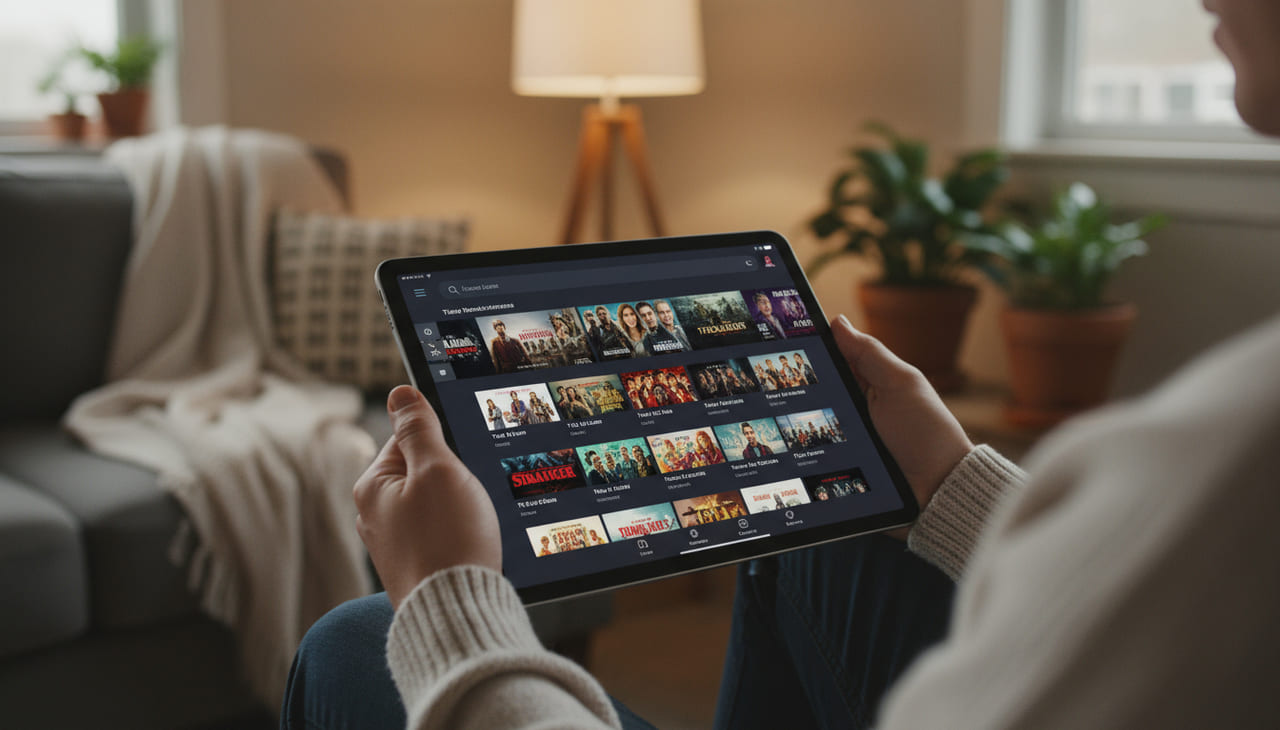
Watching Roku on an iPad for US users means accessing a variety of streaming content through different methods. It doesn’t involve mirroring your Roku TV screen. Instead, it’s about using apps like The Roku Channel or individual streaming service apps to enjoy shows and movies on your iPad.
This offers flexibility, allowing you to watch content on the go, offline (if the app allows downloads), and with personalized settings within each app. It expands your Roku experience beyond the TV, catering to mobile viewing habits.
2. Roku TV vs The Roku Channel vs the Roku mobile app on iPad
Roku TV is the physical television set with the Roku operating system built in. The Roku Channel is a free streaming service offered by Roku, accessible on Roku devices and via an app on devices like iPads.
The Roku mobile app on iPad mainly serves as a remote control for your Roku TV or player. It also offers features like private listening, but doesn’t directly stream the Roku TV’s screen to your iPad. The Roku Channel is your go-to for watching content directly on the iPad.
3. What you can and cannot do today (as of Sep 2025)
As of September 2025, you can watch free content via The Roku Channel app and access your paid subscriptions (Netflix, Hulu, etc.) through their respective iPad apps. Private listening is also available.
You cannot directly stream or mirror your Roku TV screen to your iPad. AirPlay only works from the iPad to Roku devices, not the other way around. True screen mirroring from a Roku device to an iPad is unavailable for security and technical reasons.
4. How this guide helps beginners choose the right path
This guide helps beginners navigate the options for watching Roku content on their iPads. It clarifies the distinctions between different Roku services. It also provides step-by-step instructions.
The guide outlines alternative methods. It emphasizes benefits and limitations. It offers clear recommendations based on individual needs. It empowers users to make informed choices. It helps users understand how to enjoy their favorite shows and movies on their iPads.
II. Your Options: Quick answer and decision map

Options
1. If you want free shows and movies on iPad use The Roku Channel app
If you’re looking for free entertainment on your iPad, The Roku Channel app is a great option. It offers a wide selection of movies, TV shows, and live channels that you can watch without a subscription fee. The content is ad-supported, but it provides a cost-effective way to enjoy a variety of content.
This is perfect for casual viewing and discovering new shows without committing to a paid service. The Roku Channel is constantly updated with new titles, ensuring there’s always something fresh to watch.
2. If you already pay for Netflix Hulu Disney Plus Prime Video and others use their iPad apps
If you’re already subscribed to streaming services like Netflix, Hulu, Disney Plus, or Prime Video, you can use their dedicated iPad apps to watch content. Simply download the app, sign in with your existing account credentials, and start streaming.
This allows you to access your personalized watchlists, profiles, and download content for offline viewing (if the service supports it). Using the provider apps gives you the best experience tailored to each service.
3. If you want to mirror a Roku screen to iPad that is not supported with safer alternatives below
Directly mirroring your Roku screen to an iPad is not supported. This limitation is due to technical and security reasons. There are, however, alternatives to achieve a similar outcome without compromising your device’s security or performance.
Consider using network TV tuners or live TV streaming services. These options provide a way to watch live content on your iPad without needing to mirror your Roku screen. These alternatives also offer additional features, such as DVR capabilities.
4. If you only need headphone listening with your TV use Roku private listening on iPad
If your main goal is to listen to your Roku TV audio through headphones, you can use the Roku mobile app’s private listening feature on your iPad. This feature streams the audio from your Roku device to your iPad, allowing you to connect headphones and listen privately.
This is ideal for watching TV without disturbing others or for enhancing your listening experience. Note that this only streams audio, not video, to your iPad.
III. Requirements and compatibility

Requirements
1. iPad models and iPadOS versions supported for Roku apps (check App Store as of Sep 2025)
To use Roku apps on your iPad, you’ll need a compatible iPad model and iPadOS version. Check the App Store listing for The Roku Channel and individual streaming service apps to confirm the minimum iPadOS version required.
Typically, newer iPad models and updated iPadOS versions offer the best compatibility and performance. It’s always a good idea to keep your iPad’s software up to date to ensure smooth streaming and access to the latest features.
2. US availability content regions and account basics
Roku services and content availability vary by region. This guide primarily focuses on US availability. To use The Roku Channel and other streaming apps, you’ll need a Roku account (for The Roku Channel) or accounts with individual streaming providers.
Ensure your Roku account and streaming subscriptions are set up for the US region. Content access is restricted by geographical location. Be aware of these region locks when planning to stream.
3. Wi Fi and cellular internet speeds for smooth streaming
Smooth streaming on your iPad requires a stable and sufficiently fast internet connection. Wi-Fi is generally recommended for home use. Cellular data can be used on the go. The required speed depends on the streaming quality.
For SD content, 3 Mbps is usually sufficient. For HD, aim for at least 5 Mbps. For 4K streaming, 25 Mbps or higher is recommended. Test your internet speed and adjust streaming quality accordingly to avoid buffering.
4. Access permissions storage and parental controls on iPad
When installing Roku apps on your iPad, you’ll be asked to grant certain access permissions. These may include access to your network, storage, and location. Review these permissions carefully.
Grant only what is necessary for the app to function properly. Consider adjusting storage settings to manage downloaded content. Set up parental controls to restrict access to certain content based on age ratings. Use iPad’s built in Screen Time features.
IV. Method – 1: Watch free content with The Roku Channel app on iPad

Method
1. What The Roku Channel offers on iPad in the US
The Roku Channel on iPad offers a variety of free, ad-supported movies, TV shows, and live channels in the US. The selection includes content from various genres. The selection includes content from various providers.
It’s a great way to watch entertainment without a subscription fee. The Roku Channel is constantly updated. The Roku Channel is constantly updated with new titles. It makes it a valuable source of free streaming content.
2. Features to expect ads profiles parental controls and limits
Expect to see advertisements while streaming content on The Roku Channel, as it is ad-supported. You can create profiles for different users. This allows personalized recommendations and watchlists.
Parental controls are available to restrict access to certain content based on ratings. There may be limits on the number of devices that can stream simultaneously. These features help manage your viewing experience.
3. Cost and value considerations for ad supported streaming
The primary benefit of The Roku Channel is its cost: free. You can access a wide range of content without paying a subscription fee. However, the trade-off is that you’ll encounter advertisements.
Consider whether the cost savings outweigh the interruption of ads. If you’re comfortable with ads, The Roku Channel offers excellent value. It provides a diverse library of free content.
4. Step-by-step setup
A. Step – 1: Install The Roku Channel from the App Store
Open the App Store: Locate the App Store icon on your iPad’s home screen and tap it to open.
Search for The Roku Channel: In the App Store, tap the “Search” tab at the bottom of the screen. Type “The Roku Channel” in the search bar and tap the “Search” button.
Install the app: Find “The Roku Channel” app in the search results and tap the “Get” button. Then, tap “Install” to download and install the app on your iPad. You may need to enter your Apple ID password or use Touch ID/Face ID to confirm the installation.
B. Step – 2: Sign in or create a free Roku account
Open The Roku Channel app: Once the installation is complete, tap the “Open” button on the App Store or find The Roku Channel icon on your home screen and tap it.
Sign in or create an account: When the app opens, you’ll be prompted to sign in or create a free Roku account. If you already have a Roku account, enter your email address and password and tap “Sign In.” If you don’t have an account, tap “Create Account” and follow the on-screen instructions to create a free Roku account.
Browse free content: After signing in, you’ll be taken to the main screen of The Roku Channel. Here, you can browse through the available free movies, TV shows, and live channels.
Explore premium subscriptions: The Roku Channel also offers premium subscriptions to various streaming services. To explore these, look for a section labeled “Premium Subscriptions” or similar.
Add a subscription (optional): If you find a premium subscription you’re interested in, tap on it to learn more. Follow the on-screen instructions to subscribe. Note that you’ll be billed through your Roku account.
D. Step – 4: Adjust playback quality captions and data settings
Access settings: Within The Roku Channel app, look for a “Settings” or “Preferences” section. This is usually found in the app’s menu or profile area.
Adjust playback quality: In the settings, you should find options to adjust the playback quality. You can typically choose between “Auto,” “High,” “Medium,” and “Low” quality. Select a lower quality if you’re experiencing buffering or want to conserve data.
Enable captions: Look for a “Captions” or “Subtitles” setting. Turn this on if you want to display captions on your videos. You may also be able to customize the appearance of the captions.
Data settings: Check for data usage settings. Some apps allow you to limit data usage by restricting streaming quality or disabling automatic downloads. Adjust these settings based on your data plan.
Example: After installing The Roku Channel app, you sign in with your Roku account and browse the free movie section. You decide to watch an action movie. You notice the video quality is buffering. You go to settings and lower the playback quality from “High” to “Medium” to improve the streaming.
V. Method – 2: Watch your paid streaming services on their iPad apps
Method
1. Use the same accounts you use on Roku for Netflix Hulu Disney Plus Prime Video Max Peacock and more
You can use the same account credentials you use on your Roku device to access your paid streaming services on their respective iPad apps. This includes services like Netflix, Hulu, Disney Plus, Prime Video, Max, Peacock, and more.
Simply download the app from the App Store and sign in using your existing username and password. This allows you to access your personalized watchlists. This allows you to continue watching shows where you left off.
2. Sign in link accounts and restore purchases on iPad
When you first open a streaming service’s iPad app, you’ll be prompted to sign in. Enter the email address and password associated with your account. Some apps may offer a “link account” option.
This usually involves entering a code displayed on your iPad into your account settings on the service’s website. If you’ve previously made purchases within the app, look for a “restore purchases” option to regain access to that content.
3. Offline downloads picture quality and profiles vary by service
Offline download availability, picture quality options, and profile support vary by streaming service. Some services, like Netflix and Prime Video, allow you to download content for offline viewing. This is useful for watching on the go without using data.
Picture quality options (SD, HD, 4K) also differ. Many services support multiple profiles. This allows each member of your household to have their own personalized viewing experience.
4. Cost vs convenience choosing bundles and avoiding duplicate billing
Using individual streaming service apps on your iPad offers convenience. It offers personalized viewing experiences. However, it can also be costly. Subscribing to multiple services can quickly add up.
Consider choosing streaming bundles that combine multiple services at a discounted price. Also, be mindful of duplicate billing. Avoid subscribing to the same service through multiple platforms.
Example: You have a Netflix account that you use on your Roku TV. You download the Netflix app on your iPad, sign in with your Netflix email and password, and immediately have access to your watchlist and viewing history. You download a few episodes of your favorite show to watch on a flight.
Method
Roku offers premium subscriptions that are billed through your Roku account. These subscriptions can be accessed on both your Roku devices and within The Roku Channel app on your iPad.
When you subscribe to a premium channel through Roku, it becomes available across all your Roku-linked devices. This provides a convenient way to manage and access your subscriptions in one place.
2. Where partner channels appear inside The Roku Channel app on iPad
Partner channels subscribed to through Roku appear within The Roku Channel app on your iPad. These channels are typically listed in a dedicated section. This section may be labeled “Premium Subscriptions” or something similar.
You can browse and watch content from these channels directly within The Roku Channel app. This eliminates the need to switch between multiple apps to access your subscribed content.
3. Trade offs versus subscribing directly in each provider app
Subscribing to premium channels through Roku offers the convenience of centralized billing and access across devices. However, there are trade-offs compared to subscribing directly through each provider’s app.
Subscribing directly might offer access to exclusive features or content not available through Roku. Prices may also vary. Consider these factors when deciding how to subscribe.
4. Billing management free trials renewals and cancellations
Billing for Roku premium subscriptions is managed through your Roku account. You can view your subscriptions, manage payment methods, and cancel subscriptions through your Roku account settings.
Free trials are often offered for premium subscriptions. Be aware of the renewal date to avoid being charged if you don’t wish to continue the subscription. Cancellations typically take effect at the end of the current billing cycle.
Example: You subscribe to HBO Max through The Roku Channel on your Roku TV. You open The Roku Channel app on your iPad and find HBO Max listed in the “Premium Subscriptions” section. You can watch HBO Max content directly within The Roku Channel app on your iPad without needing a separate HBO Max app.
VII. What you cannot do with Roku and iPad and safe alternatives

What
1. You cannot stream your Roku player or Roku TV screen to an iPad
It is not possible to directly stream your Roku player or Roku TV screen to an iPad. This functionality is not supported by Roku devices or the Roku mobile app.
The Roku mobile app primarily serves as a remote control and for private listening. It does not offer screen mirroring or streaming from the Roku device to the iPad. This limitation is due to technical and security reasons.
2. AirPlay goes from iPad to Roku not Roku to iPad
AirPlay, Apple’s wireless streaming technology, allows you to stream content from your iPad to a Roku device, but not the other way around. You can use AirPlay to mirror your iPad’s screen or stream video and audio to your Roku TV.
However, you cannot use AirPlay to stream content from your Roku device to your iPad. This direction of streaming is not supported. Understand this directionality for correct usage.
3. Private listening streams audio only not video
The Roku mobile app offers a “private listening” feature. This feature streams audio from your Roku device to your smartphone or tablet. This allows you to listen to TV audio through headphones.
However, it’s important to note that private listening only streams audio. It does not stream video. You’ll still need to watch the video on your TV screen. The iPad acts as an audio output device.
4. Safer alternatives network TV tuners cable apps and live TV services
If you want to watch live TV on your iPad, consider safer alternatives to screen mirroring. These include using network TV tuners, cable provider apps, and live TV streaming services.
Network TV tuners like Tablo or HDHomeRun allow you to stream over-the-air broadcasts to your iPad. Cable provider apps let you watch live TV and on-demand content included in your cable subscription. Live TV services like YouTube TV or Sling offer a wide range of channels.
Example: You want to watch a football game that is playing on your Roku TV on your iPad while you are in another room. Instead of trying to mirror the screen (which is not possible), you use your cable provider’s app on your iPad, sign in with your cable account, and watch the game live.
VIII. Compare your options side by side

Comparison
1. Free ad supported The Roku Channel vs paid provider apps
The Roku Channel offers free, ad-supported content, while paid provider apps (Netflix, Hulu, etc.) require a subscription fee. The Roku Channel provides a cost-effective way to watch movies and TV shows, but you’ll encounter ads.
Paid provider apps offer ad-free viewing (in most cases) and access to exclusive content libraries. The choice depends on your budget and tolerance for advertisements. The choice depends on your content preferences.
2. Features vs usability downloads 4K captions and profiles
Features and usability vary between The Roku Channel and paid provider apps. Some provider apps offer offline downloads. This feature allows you to watch content without an internet connection. The Roku Channel and some providers offer 4K streaming.
The Roku Channel and some providers also support captions and multiple profiles. Consider which features are most important to you when choosing between these options. Prioritize downloads when traveling.
3. Short term savings vs long term value and streaming bundles
The Roku Channel offers short-term savings due to its free access. However, paid provider apps may offer better long-term value. Paid provider apps may offer better long-term value if you watch a lot of content.
Consider streaming bundles. Streaming bundles combine multiple services. Streaming bundles combine multiple services at a discounted price. This can provide significant savings over subscribing to each service individually. Evaluate your viewing habits.
4. Privacy ad tracking and data usage considerations
Privacy, ad tracking, and data usage are important considerations. The Roku Channel tracks your viewing habits to personalize ads. Paid provider apps also collect data.
Be aware of the privacy policies of each service. Manage your data usage by adjusting streaming quality and downloading content when possible. Use privacy settings on your iPad to limit ad tracking.
IX. Live TV on iPad without Roku mirroring
1. Using services like YouTube TV Hulu Live Sling Fubo and DirecTV Stream
You can watch live TV on your iPad without mirroring your Roku screen by using live TV streaming services. Popular options include YouTube TV, Hulu Live TV, Sling TV, FuboTV, and DirecTV Stream.
These services offer a wide range of channels, including local broadcast networks, cable channels, and sports networks. You can stream live TV directly to your iPad using their respective apps. These offer DVR capabilities.
2. Watching local channels with network tuners such as Tablo or HDHomeRun
Another option for watching local channels on your iPad is to use a network TV tuner. Devices like Tablo or HDHomeRun connect to an antenna. Devices like Tablo or HDHomeRun then stream over-the-air broadcasts.
You can watch these channels on your iPad using the tuner’s companion app. This is a great way to access local news, sports, and entertainment without a cable subscription. Benefit from the tuner’s built in features.
3. Using your cable or satellite provider apps and TV Everywhere logins
Many cable and satellite providers offer apps that allow you to watch live TV and on-demand content on your iPad. These apps require you to sign in using your TV Everywhere credentials. These credentials are the username and password associated with your cable or satellite account.
With these apps, you can access many of the same channels you get on your TV. With these apps, you can access many of the same channels you get on your TV, providing a convenient way to watch live TV on the go.
4. Cost channel lineups DVR limits and multi device use
When choosing a live TV streaming service or network tuner, consider the cost, channel lineups, DVR limits, and multi-device use. Live TV streaming services vary in price and the channels they offer. Some services offer unlimited DVR storage.
Others have limited storage capacity. Check how many devices can stream simultaneously. This is especially important for households with multiple viewers. Network tuners don’t have monthly fees.
Example: You want to watch local news on your iPad, but you don’t have a cable subscription. You purchase a HDHomeRun network tuner, connect it to an antenna, and download the HDHomeRun app on your iPad. You can now watch live, over-the-air broadcasts of your local news channels on your iPad.
X. Network and data planning for iPad streaming
1. Recommended Wi Fi speeds for SD HD and 4K
The Wi-Fi speed required for smooth iPad streaming depends on the video quality you’re watching. For Standard Definition (SD) content, a minimum speed of 3 Mbps is generally recommended.
For High Definition (HD) content, aim for at least 5 Mbps. For Ultra High Definition (4K) content, a speed of 25 Mbps or higher is ideal. Slower speeds can result in buffering or lower video quality.
2. Managing cellular data set streaming quality and use downloads
If you’re streaming over cellular data, it’s important to manage your data usage. Most streaming apps allow you to adjust the streaming quality. Select a lower quality to reduce data consumption.
Consider downloading content for offline viewing when possible. This allows you to watch without using any cellular data. Monitor your data usage in your iPad’s settings.
3. Home network tips router placement 5 GHz vs 2.4 GHz
For optimal Wi-Fi performance at home, place your router in a central location. This ensures even coverage throughout your house. Most modern routers support both 2.4 GHz and 5 GHz bands.
The 5 GHz band offers faster speeds. The 5 GHz band offers faster speeds but has a shorter range. The 2.4 GHz band has a longer range but slower speeds. Connect your iPad to the 5 GHz band if possible.
4. Travel hotspot use and public Wi Fi security basics
When traveling, you may need to use a mobile hotspot or public Wi-Fi. Be aware of the security risks associated with public Wi-Fi. Avoid transmitting sensitive information over unsecured networks.
Consider using a VPN to encrypt your data. When using a mobile hotspot, monitor your data usage carefully. Streaming video can quickly deplete your data allowance. Download content before you travel.
Example: You are traveling and want to watch a movie on your iPad using your phone’s mobile hotspot. You know that streaming in HD will use a lot of data, so you go into the streaming app’s settings and lower the video quality to “Standard” to conserve data.
XI. Accessibility and family controls on iPad and within apps
1. Turn on captions subtitles and audio descriptions
To enhance accessibility, turn on captions, subtitles, and audio descriptions on your iPad and within streaming apps. Captions and subtitles display the dialogue on screen. This is helpful for viewers who are deaf or hard of hearing.
Audio descriptions provide narration of visual elements. This is helpful for viewers who are blind or visually impaired. These settings are usually found in the iPad’s accessibility settings and within the app’s settings.
2. Screen Time parental controls content ratings and restrictions
iPad’s Screen Time feature allows you to set parental controls, content ratings, and restrictions. You can limit the amount of time your children spend on their iPads. You can also restrict access to certain apps and websites.
Set content ratings to prevent them from viewing inappropriate content. Screen Time provides valuable tools for managing your children’s device usage. Screen Time provides valuable tools for managing your children’s online safety.
3. VoiceOver and other iPad accessibility features
iPad offers a range of accessibility features, including VoiceOver, Zoom, and Switch Control. VoiceOver is a screen reader that describes what’s happening on the screen. This is helpful for users who are blind or visually impaired.
Zoom magnifies the screen. Zoom magnifies the screen, making it easier to see small text and images. Switch Control allows users with motor impairments to control their iPad using assistive devices.
4. Kid profiles and PINs in The Roku Channel and major streaming apps
Many streaming apps, including The Roku Channel, allow you to create kid profiles. These profiles offer a safe and age-appropriate viewing experience for children. Set a PIN to prevent children from switching to adult profiles.
This ensures they can only access content that is suitable for them. Kid profiles typically have content restrictions and simplified interfaces.
Example: You want to make sure your child only watches age-appropriate content on The Roku Channel app on their iPad. You create a kid profile within The Roku Channel, set a PIN to prevent them from switching to your profile, and enable content restrictions for their age group.
XII. Example scenarios and recommendations

Example
1. I want free movies on your iPad with minimal setup
If you want free movies on your iPad with minimal setup, The Roku Channel app is the best option. Simply download the app, create a free Roku account, and start browsing the available movies.
The Roku Channel offers a wide selection of free, ad-supported movies. It requires no subscription fee. The Roku Channel is a great choice for casual viewing. The Roku Channel is a great choice for casual viewing on your iPad.
2. Our family already uses multiple subscriptions on a Roku TV
If your family already uses multiple subscriptions on a Roku TV, download the corresponding apps on your iPad. Sign in with your existing account credentials to access your personalized watchlists and continue watching where you left off.
This allows each family member to enjoy their favorite content on their own devices. This avoids the need to share a single screen. Ensure simultaneous stream limits are sufficient.
3. I only want to listen on headphones while the TV plays
If you only want to listen on headphones while the TV plays, use the Roku mobile app’s private listening feature on your iPad. Connect your headphones to your iPad, open the Roku app, and select the private listening option.
This streams the audio from your Roku TV to your iPad. This allows you to listen privately without disturbing others. Remember this is an audio only stream.
4. I travel often and need offline viewing
If you travel often and need offline viewing, subscribe to streaming services that offer download options. Netflix, Prime Video, and Disney Plus all allow you to download movies and TV shows to your iPad for offline viewing.
Download content before you travel to enjoy it without an internet connection. This is ideal for long flights or areas with limited connectivity. Check download limits beforehand.
Example: You are going on a long flight and want to watch movies on your iPad. Before you leave, you open the Netflix app, download a few movies and TV shows to your iPad, and then watch them during the flight without needing an internet connection.
XIII. Setup checklists and quick references

Setup
1. Checklist for installing and signing in on The Roku Channel app
- Download the App: Go to the App Store on your iPad and download The Roku Channel app.
- Create an Account: Open the app and create a free Roku account if you don’t already have one.
- Sign In: If you have an account, sign in with your existing credentials.
- Browse: Start browsing the free content available on The Roku Channel.
- Explore Premium: Check for premium subscriptions.
2. Checklist for using provider apps with existing accounts
- Download: Download the apps for the streaming services you subscribe to (Netflix, Hulu, etc.).
- Sign In: Open each app and sign in with your existing account credentials.
- Verify: Verify that your watchlists and profiles are accessible.
- Adjust Settings: Adjust playback quality and download settings as needed.
- Explore: Explore the content libraries available on each app.
3. Checklist for data and privacy settings on iPad
- Check Wi-Fi: Connect to a trusted Wi-Fi network.
- Adjust Quality: Adjust streaming quality settings to manage data usage.
- Download: Download content for offline viewing when possible.
- Privacy Settings: Review and adjust privacy settings on your iPad and within apps.
- Monitor Data: Monitor your data usage in your iPad’s settings.
4. Checklist before a trip for offline and bandwidth planning
- Download Content: Download movies and TV shows to your iPad for offline viewing.
- Check Downloads: Verify that the downloads are complete and accessible.
- Test Playback: Test playback of downloaded content to ensure it works properly.
- Check Data Plan: Check your cellular data plan if you plan to stream on the go.
- Find Wi-Fi: Identify potential Wi-Fi hotspots at your destination.
Example: Before going on a trip, you use the “Checklist before a trip for offline and bandwidth planning” to make sure you have downloaded enough content to your iPad, that the downloads are working, and that you have enough data on your phone plan in case you cannot connect to Wi-Fi.
XIV. Key terms and simple glossary
1. Roku TV Roku player The Roku Channel Roku mobile app
- Roku TV: A television with the Roku operating system built-in, providing access to streaming services.
- Roku Player: A streaming device that connects to your TV, offering access to streaming services.
- The Roku Channel: A free, ad-supported streaming service offered by Roku.
- Roku Mobile App: An app for smartphones and tablets. The app functions as a remote control.
2. AirPlay screen mirroring casting and private listening
- AirPlay: Apple’s wireless streaming technology for streaming content between Apple devices.
- Screen Mirroring: Displaying the screen of one device on another device.
- Casting: Sending video content from one device to another for playback.
- Private Listening: Streaming audio from a TV or device to headphones via a mobile app.
3. Ad supported vs subscription and free trials
- Ad-Supported: Content that is free to watch but includes advertisements.
- Subscription: A recurring payment for access to a streaming service or content library.
- Free Trial: A period of free access to a streaming service. A subscription will automatically be charged after the trial unless you cancel.
4. TV Everywhere DVR and network tuner
- TV Everywhere: A service that allows cable and satellite subscribers to watch live TV and on-demand content. They can watch the content on various devices using their provider credentials.
- DVR (Digital Video Recorder): A device or service that allows you to record television programs for later viewing.
- Network Tuner: A device that connects to an antenna and streams over-the-air broadcasts to devices on your network.
XV. Troubleshooting Common Issues Watching Roku TV on Your iPad

Troubleshooting
1. App Not Connecting
Ensure both your iPad and Roku are on the same Wi-Fi network. Restart both devices.
2. Playback Errors
Check your internet speed. Try lowering the video quality in the Roku app settings.
3. Roku Device Not Found
Make sure your Roku device is powered on and connected to the network. Rescan for devices within the Roku app.
4. App Crashes Frequently
Update the Roku app on your iPad to the latest version. Clear the app cache and data.
5. No Audio During Playback
Verify the volume is turned up on both your iPad and Roku device. Check the audio output settings.
6. Lagging or Buffering
Close other apps running on your iPad that might be consuming bandwidth. Move closer to the Wi-Fi router.
7. Remote Control Feature Not Working
Ensure your iPad and Roku are on the same Wi-Fi network. Restart the Roku app.
8. Screen Mirroring Issues
Confirm your Roku device supports screen mirroring. Enable screen mirroring in your Roku settings.
9. Sign-in Problems
Double-check your Roku account credentials. Reset your password if necessary.
10. Content Not Available
Some content might not be available for streaming on mobile devices due to licensing restrictions.
XVI. Tips and Tricks for Watching Roku TV on Your iPad

Tips and Tricks
1. Use Headphones for Private Listening
Plug in headphones to your iPad for an immersive and private viewing experience without disturbing others.
2. Offline Viewing with Downloads
Some channels allow downloading content for offline viewing, perfect for travel or areas with limited internet.
3. Utilize the Roku Mobile App as a Remote
Control your Roku device directly from your iPad using the Roku mobile app’s built-in remote feature.
Cast personal photos and videos from your iPad to your Roku TV for sharing memories on a larger screen.
5. Voice Search for Quick Access
Use the voice search function within the Roku app to quickly find movies, shows, or channels with just your voice.
6. Create a Watchlist on Your iPad
Add movies and shows to your watchlist from your iPad, and they will sync with your Roku TV for later viewing.
7. Guest Mode Privacy
Enable Guest Mode on your Roku for worry-free viewing during your stay.
8. Control Playback from Lock Screen
Manage media playback directly from your iPad’s lock screen, enabling pause, play, and volume adjustments.
9. Roku Tips and Tricks
Install the Roku channel to enhance the Roku device and experience more convenient features and tools.
10. Check Roku Channel Store on iPad
Explore the Roku Channel Store on your iPad to discover new channels and hidden gems.
XVII. Frequently Asked Questions about Watching Roku TV on Your iPad

Frequently Asked Questions (FAQs)
1. Can I watch live TV on your iPad through Roku?
Yes, if you have the Roku Channel app and a compatible streaming service that offers live TV.
2. Do I need a Roku device to use the Roku app on your iPad?
Yes, the Roku app primarily functions as a remote and companion app for a Roku device.
3. Can I mirror your iPad screen to my Roku TV?
Yes, if your Roku device supports screen mirroring and your iPad is compatible.
4. Is the Roku app free to download and use on your iPad?
Yes, the Roku app is available for free on the App Store.
5. Can I control multiple Roku devices with the same iPad?
Yes, the Roku app allows you to manage multiple Roku devices from one iPad.
6. Will the Roku app drain your iPad’s battery quickly?
Potentially, prolonged use of the Roku app can consume battery, especially with features like remote control or screen mirroring.
7. Can I use the Roku app on your iPad to stream local channels?
Only if your Roku is connected to an antenna and the Roku app is configured to display local antenna channels.
8. Can I cast content from other apps on your iPad to Roku?
Yes, as long as those apps support casting or screen mirroring to Roku devices.
9. Does the Roku app on iPad support headphones?
Yes, you can connect headphones to your iPad for private listening while using the Roku app.
10. Is a Roku account required to use the Roku app on your iPad?
Yes, you need a Roku account to activate and use most of the Roku app’s features.
XVIII. Key Takeaways for: “Can You Watch Roku TV On your iPad”

Key Takeaways
1. Basic Compatibility: You can watch Roku TV on your iPad primarily through the Roku mobile app.
2. App Functionality: The Roku app serves as a remote, enables content casting, & provides channel access.
3. Screen Mirroring: Mirror your iPad’s display to Roku for sharing photos, videos, & other content.
4. Same Network: Both Roku & iPad must be on the same Wi-Fi for app functionality like remote control.
5. Channel Subscriptions: Access streaming services via Roku channels; subscriptions managed separately.
6. Mobile App Convenience: Control your Roku, search content, & manage channels directly from your iPad.
7. Private Listening: Use headphones connected to your iPad for personal audio while watching Roku.
8. Guest Mode: Use Roku’s Guest Mode for a safe and private viewing experience when you need it.
9. Offline Viewing: Select channels and downloaded content for offline enjoyment on your iPad while you are on the go.
10. Troubleshooting Tips: Solve connectivity & playback issues with basic checks & app updates.
XIX. Conclusion

Conclusion
Ultimately, the ability to can you watch Roku TV on your iPad hinges on leveraging the Roku mobile app and understanding its capabilities. The app mainly serves as a remote control, content streamer, and enabler of features like screen mirroring. While direct streaming from Roku to iPad has limitations, using the app for control and content discovery greatly enhances the Roku TV experience. By following these guidelines, you can optimize your Roku viewing from your iPad and enjoy a more integrated entertainment experience.
XX. Additional References
- Roku Official Website – Official source for information about Roku devices, features, and the Roku mobile app.
- Apple Support – Provides comprehensive support and troubleshooting for Apple devices, including iPads.


